




Price: $249.99
(as of Sep 12, 2025 06:24:06 UTC – Details)
Summary of Switching Out of S Mode in Windows 11
Windows 11 in S mode enhances security and performance by limiting apps to those from the Microsoft Store. To install apps not available in the Store, users must switch out of S mode:
- Open Settings > System > Activation.
- In the Switch to Windows 11 Pro section, click Go to the Store (avoid links under "Upgrade your edition of Windows").
- On the Microsoft Store’s switch out page, select the Get button. Upon confirmation, you can install external applications.
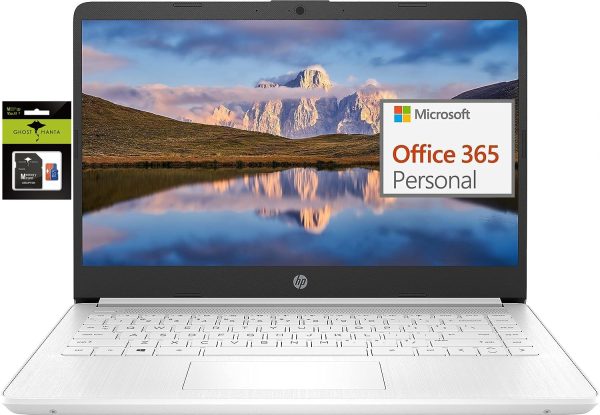
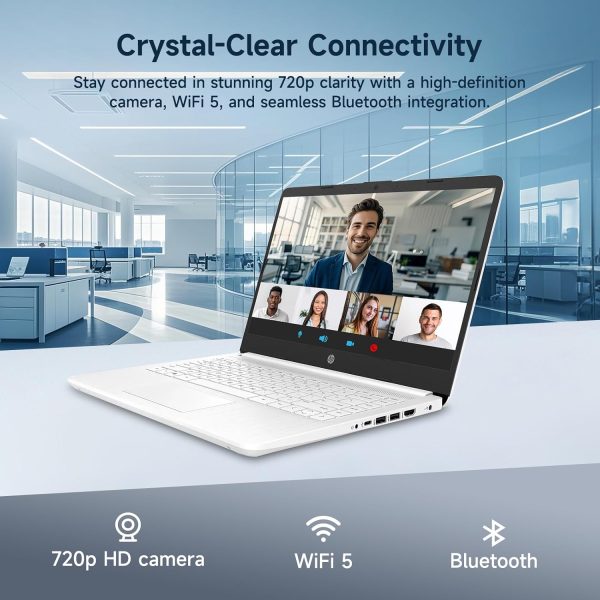
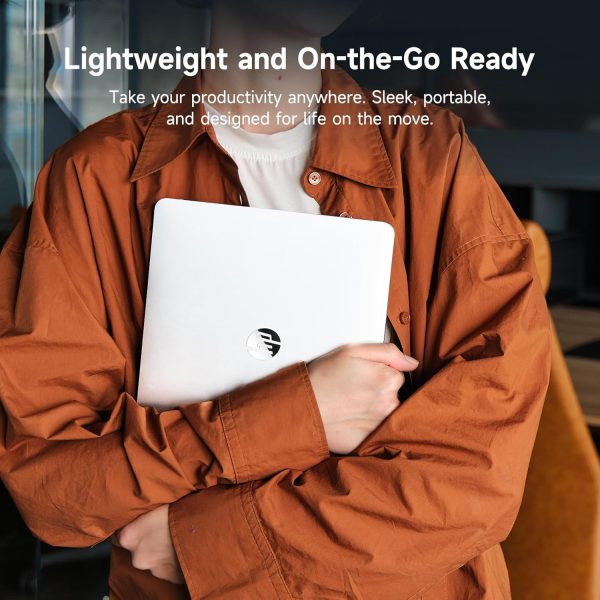
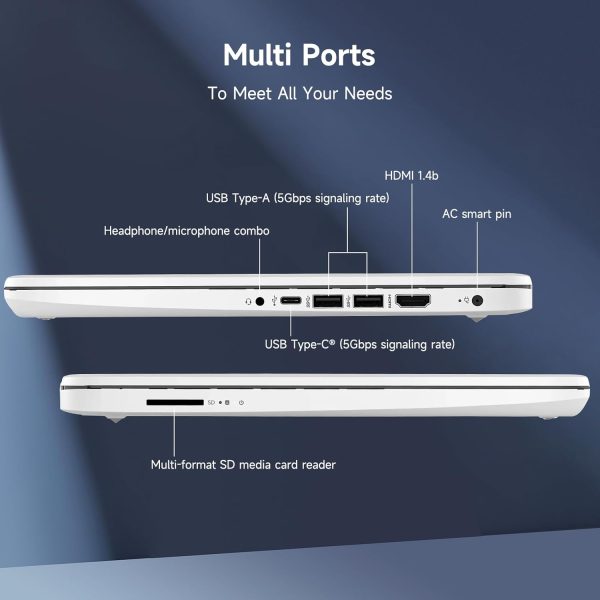
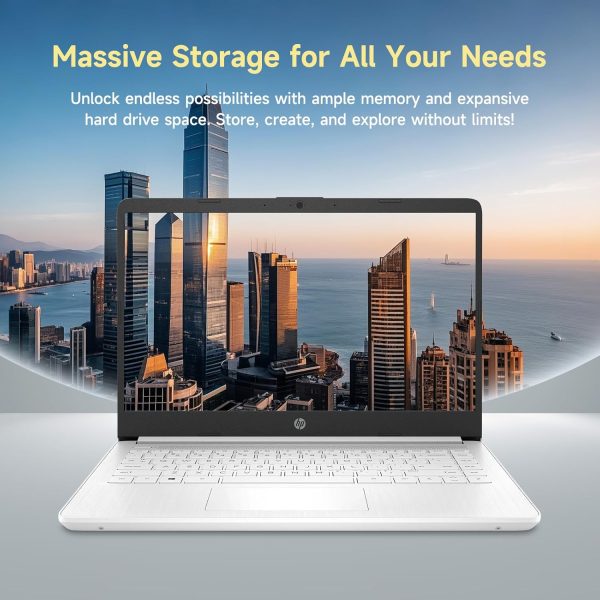
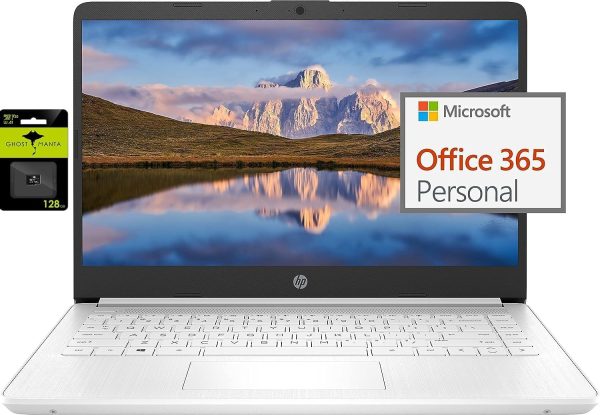
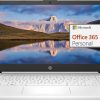
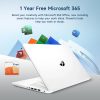
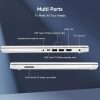
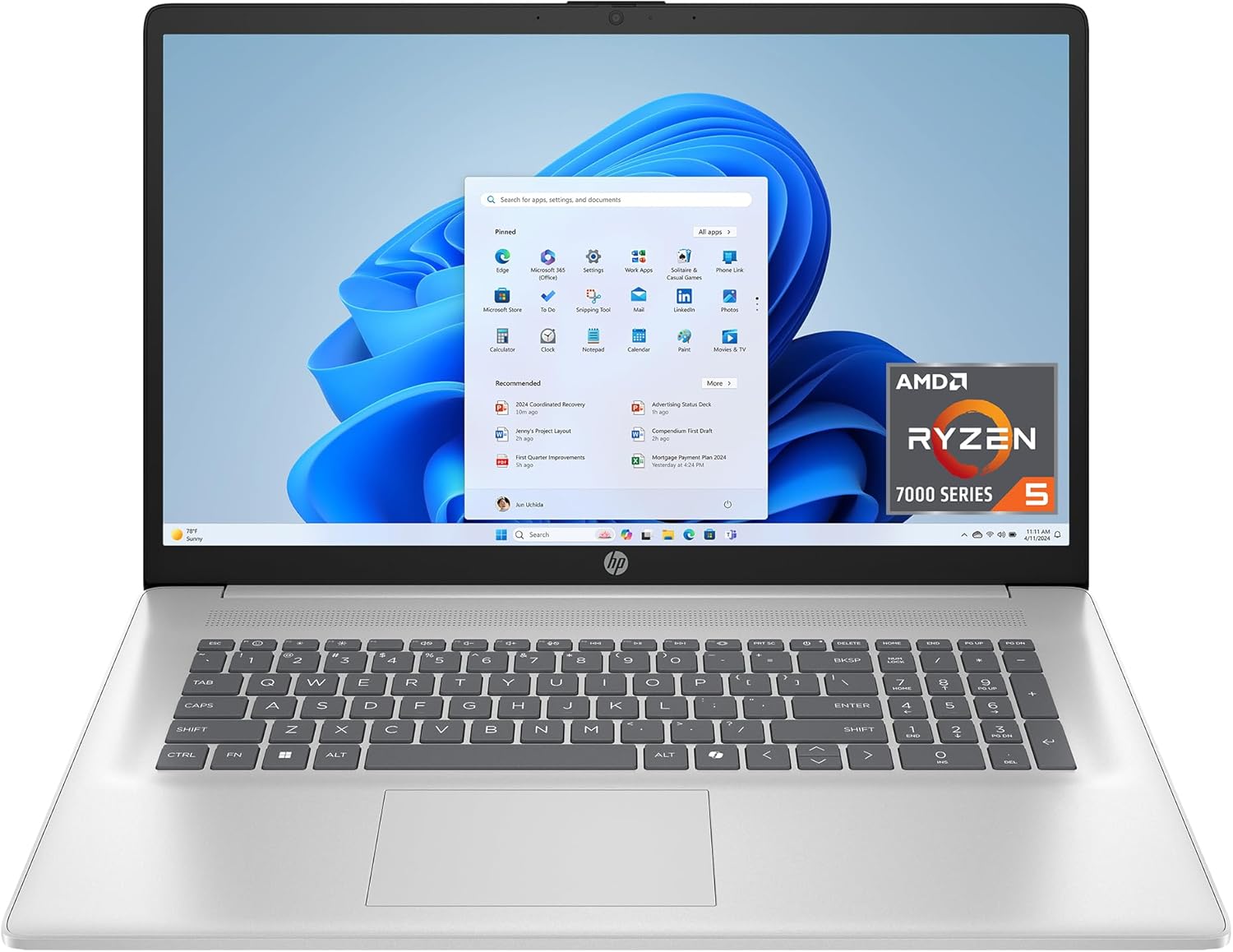
The HP 14 inch Laptop features a sleek design perfect for business and students. It weighs just 3.24 lbs and has impressive portability. Key specifications include a 14.0-inch HD display, Intel Celeron N4120 processor, 8GB DDR4 RAM, and a dual-microphone setup for clear video calls. The battery life can last up to 11.5 hours, while HP Fast Charge quickly charges the device. Connectivity includes Wi-Fi and Bluetooth, with multiple USB ports for peripherals.
Pros and Cons
Pros
- Security & Performance: S mode enhances security by restricting app installations to vetted sources.
- Portability: The lightweight design and fast-charging feature make it ideal for on-the-go use.
- Good Battery Life: Up to 11.5 hours for video playback supports extended use without frequent charging.
- Adequate Performance: 8GB RAM and Intel Celeron processor allow smooth multitasking for everyday tasks.
Cons
- Limited App Availability: Restarting to install apps outside the Store can be inconvenient.
- Entry-Level Specs: The processor may struggle with demanding applications or high-end gaming.
- No Upgrade Option: Once switched out of S mode, reverting back isn’t possible, potentially risking system security.
In conclusion, switching out of S mode unlocks broader app access but compromises some of the inherent security advantages of Windows 11 in S mode.



Reviews
There are no reviews yet.