


Price: $399.89 - $279.99
(as of Sep 06, 2025 04:05:52 UTC – Details)
Switching Out of S Mode in Windows 11
Windows 11 in S mode is optimized for security and performance, restricting app installation to the Microsoft Store. To install apps not available there, users must switch out of S mode.
Steps to Switch Out of S Mode:
- Open Settings, then navigate to System > Activation.
- In the "Switch to Windows 11 Pro" section, click "Go to the Store" (avoid the "Upgrade your edition of Windows" link).
- On the Microsoft Store’s Switch out of S mode page, click the "Get" button.
- After receiving a confirmation message, you can install apps from outside the Store.
Device Example: HP 14-inch Laptop
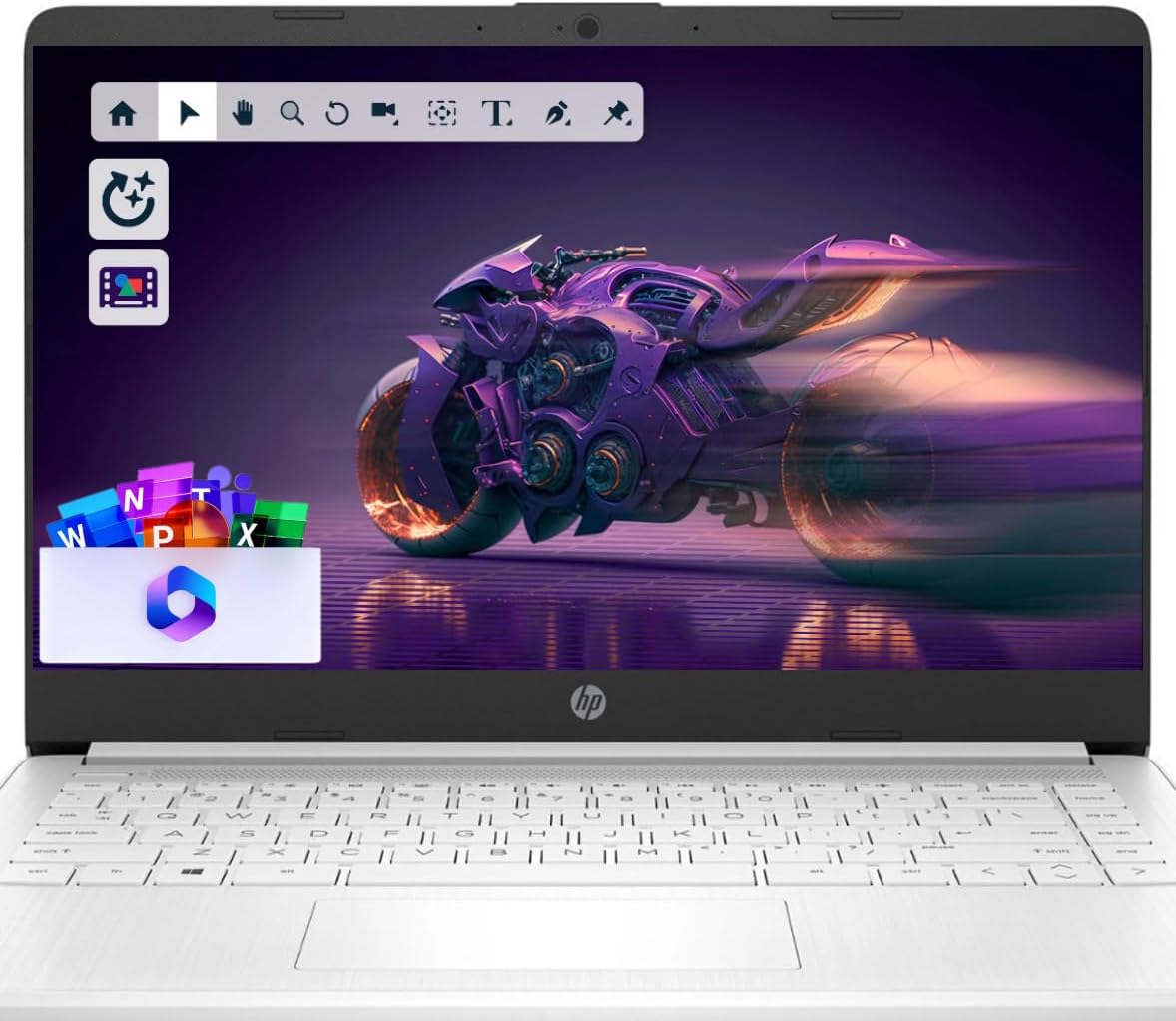
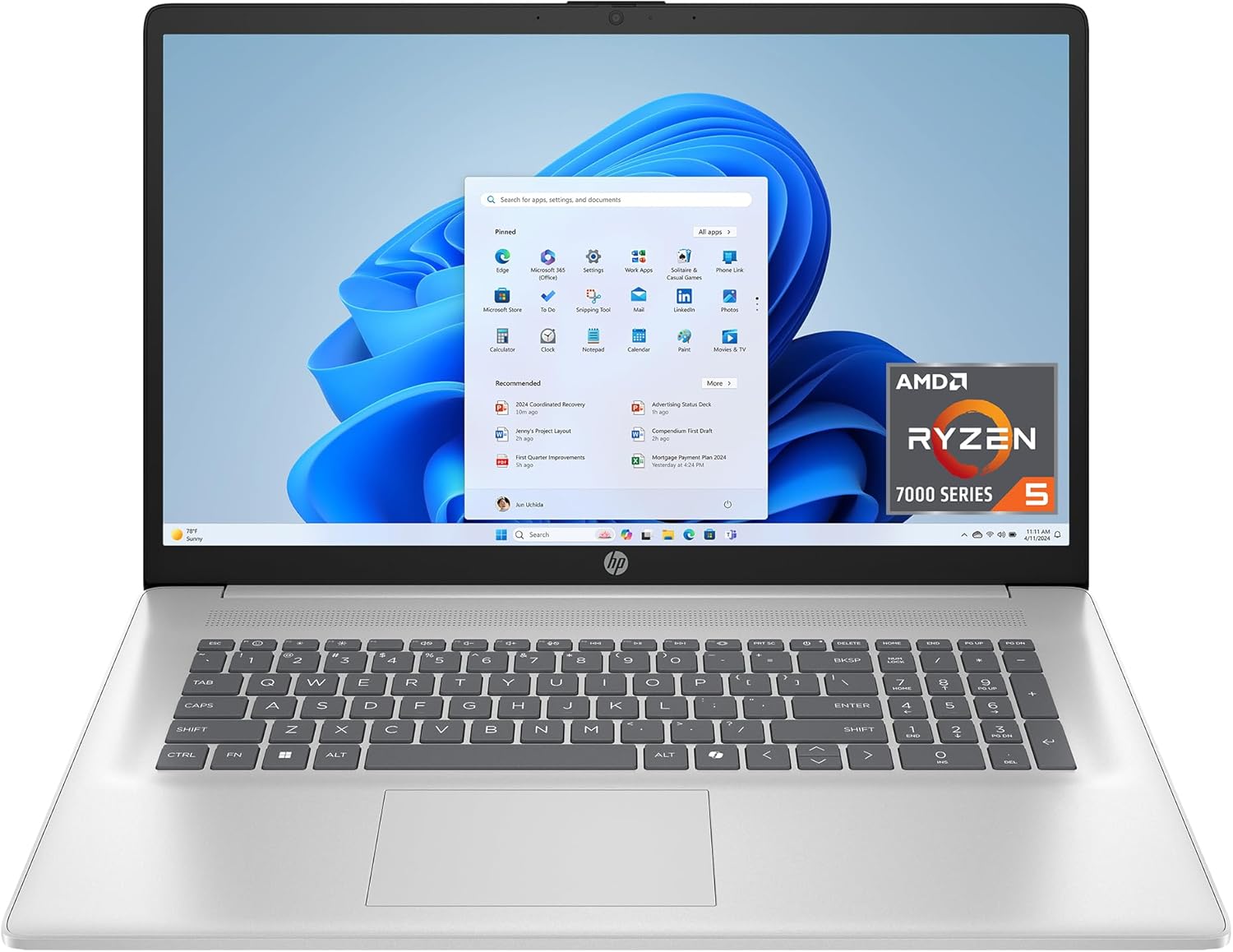
The HP laptop comes with:
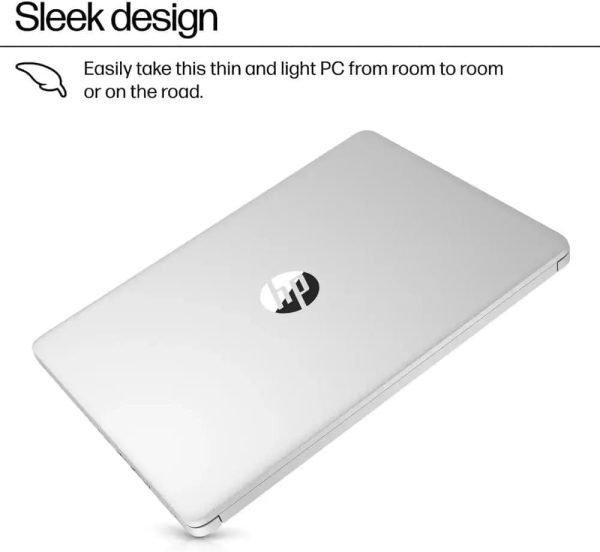
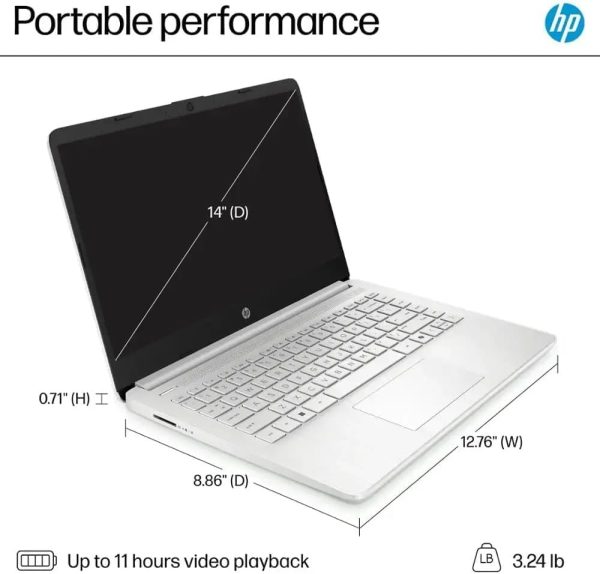
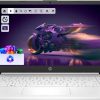
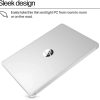
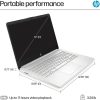
- Design: Thin and lightweight, ideal for mobility.
- Microphones: Dual array for clear audio during video chats.
- Display: 14-inch HD (1366 x 768) with a micro-edge design for a broad viewing experience.
- Processor: Intel Celeron N4120, suitable for basic multitasking.
- Battery: Fast charging (0 to 50% in 45 minutes) and up to 11.5 hours of video playback.
- Webcam: HD camera for clearer video calls.
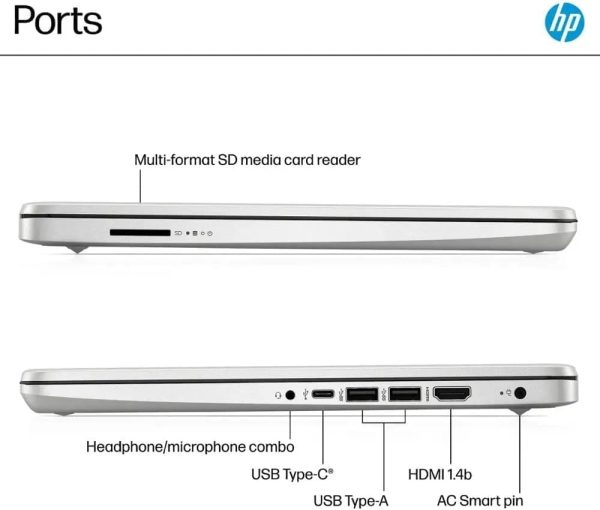
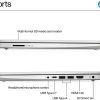
- Connectivity: Includes various USB ports, HDMI, and a microSD slot.
Pros:
- Enhanced security and performance when in S mode.
- Lightweight and portable design.
- Long battery life and fast charging capabilities.
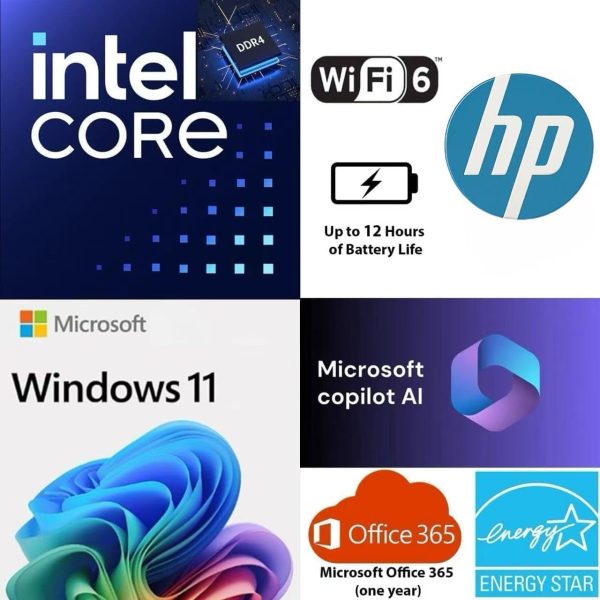
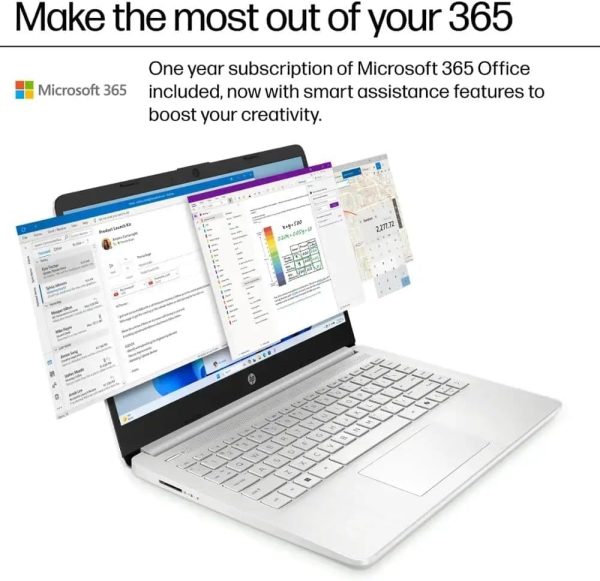
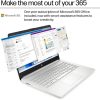
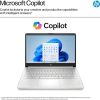
- Integrated software (Microsoft 365 for productivity).
Cons:
- Limited app installation options in S mode.
- Requires switching out for broader software access, which may reduce security.
- Some users might find the transition process confusing.
Switching out of S mode offers more flexibility but can compromise the enhanced security features designed for users focused on simplicity and safety.


Reviews
There are no reviews yet.